
The Ultimate SVG Roadmap.
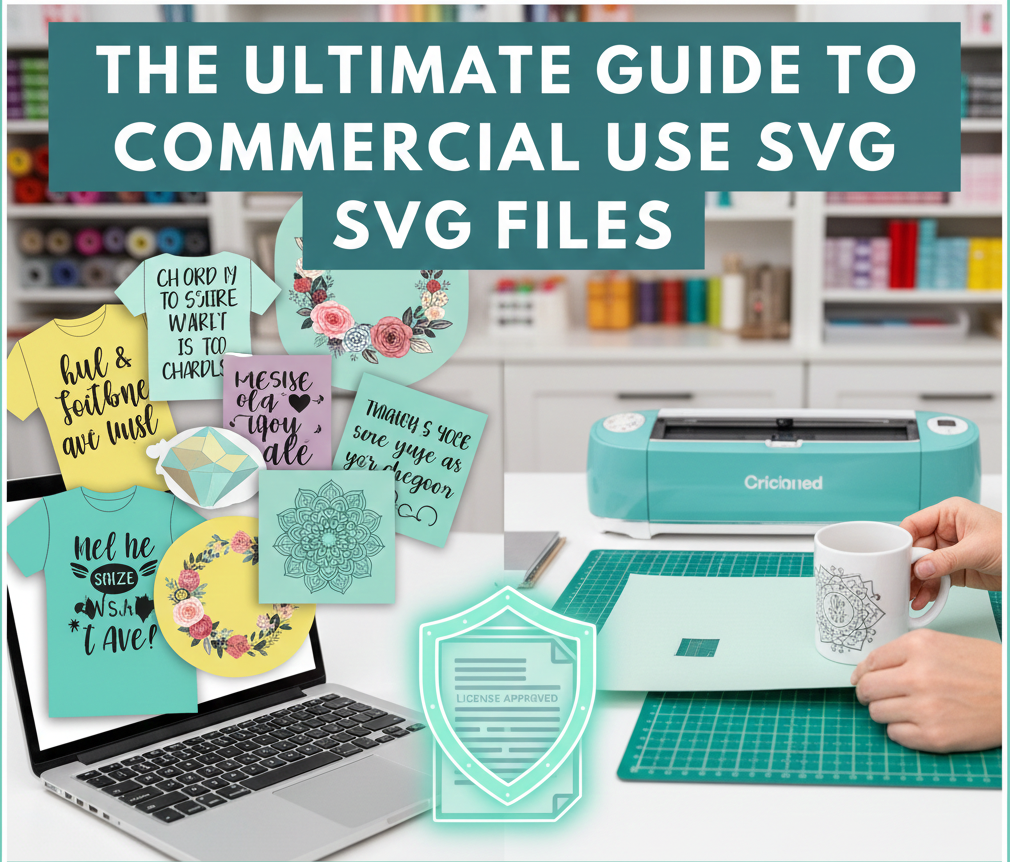
SVG for Cricut: The Ultimate Beginner to Pro Guide (Creation, Cleanup, Cut, and Selling)
If you own a Cricut, the term “SVG” is the key to unlocking true creative freedom—and profit. But whether you just unboxed your machine or you’re a seasoned seller trying to streamline your production, the world of Scalable Vector Graphics can be confusing. You might be struggling to understand why your files are pixelating (Beginner), how to design your own layered files from scratch (Intermediate), or what rules you must follow to sell your creations legally (Pro). Stop wasting time on weak, fragmented tutorials. This is the Ultimate Guide: a comprehensive roadmap that will take you from downloading your very first free file all the way to cleaning up complex nodes for professional production. Use the quick quiz below to jump straight to the exact section you need now, or read on to master the entire process!
(Interactive Quiz) Find Your Exact Roadmap Here)
Find Your Starting Point: Two Quick Questions
Answer both questions to get your personalized roadmap link:
What is an SVG for Cricut? The Absolute Beginner's Guide
If you’ve just unboxed your Cricut machine, you’ve probably heard the term SVG constantly. Simply put, SVG stands for Scalable Vector Graphic, and it is the single most important file type you will use in Cricut Design Space. Understanding why it matters is the first step to becoming a great crafter. The Takeaway: The SVG tells your Cricut blade exactly where to start and where to stop on a curve, no matter how big the curve is. That is the definition of a clean cut!
Don’t worry about designing yet—let’s master the process of finding a file, uploading it, and cutting it successfully.
Step 1: Download a Simple File
Find a simple, single-layer SVG file (like a heart or a simple quote). Many of the sites listed in Section 4 offer beginner-friendly free files. Download it to your computer.
Step 2: Upload to Design Space
In Design Space, click Upload > Upload Image. Navigate to your file. When asked, select the Cut Image option. Tip: Name your file clearly on upload so you can find it later (e.g., “FirstHeartCut”).
Step 3: Size and Test
Insert the image onto your canvas. Resize it to a manageable size (e.g., 3-4 inches). Click Make It and ensure the image appears correctly on the mat preview. Select your material (e.g., Vinyl) and watch your machine cut a perfect, non-pixelated line. Congratulations—you just successfully used an SVG!
The Intermediate Crafter: 3 Essential Paths to Creating Your Own SVGs
You’ve mastered the upload and the basic cut. Now, you’re ready to stop relying on pre-made files and start creating your own custom designs. This is where your skills—and the value of your crafts—increase exponentially.
The three primary methods for creating a cut-ready SVG are: Slice, Weld, and Contour.
The simplest way to start creating is by using the basic tools already available to you. This path is completely free, requires no extra software, and is excellent for text, simple monograms, and shadow layers. Mastering Free Software (Inkscape vs. Adobe Illustrator). If you want to create truly custom, professional, layered SVGs—the kind that can be sold legally—you must use dedicated vector software. This is the most powerful path and directly addresses the high quality needed to beat competitors.
Pro Crafter's Corner: Cleanup, Commercial Licensing, and Selling Your Designs
Before you cut a batch of 50 t-shirts, you need to ensure your SVG file is as clean and optimized as possible. Complex or high-node files lead to:
Slower cutting times. Blade dragging and tearing. Difficult and frustrating weeding.
This is the most critical information for the Pro crafter. Almost every free file comes with a Free Personal Use license, but very few have a Free Commercial Use license. Understanding the difference is the barrier to entry for selling legally.
Rule 1: The Golden Rule of Resale
You can always sell the finished, physical product (a t-shirt, mug, or framed decal) that the file made. You can almost never sell the digital file itself, even if you slightly modify the colors or add a background. This is considered reselling the source material.
Rule 2: Check the Unit Limit (The 500-Unit Barrier)
Most free commercial licenses are only valid for Small Business Use, which typically means a maximum of 500 finished units per design. If you sell 501 shirts, you are legally obligated to purchase the full extended license from the designer. Always track your sales per design in a spreadsheet!
Rule 3: Print-on-Demand (POD) is NOT Small Business
Uploading a free SVG design to an automated service like Amazon Merch, Redbubble, or Printful is usually considered mass production, regardless of how many units you sell. Unless the license explicitly states “POD Use Allowed,” you must assume it is prohibited.
Effortless Style Made Easy
SVG Resource Site
The 5 Best Verified SVG Sites (Free and Commercial Use.
Stop searching endless forums and unreliable sites. We have vetted hundreds of sources to bring you the five most reliable places to download high-quality SVGs. Pay special attention to the License Type—this is the single most important factor if you plan to sell your finished projects!
https://www.creativefabrica.com/
Always Check the ZIP Folder!
Every professional SVG creator includes a License Readme or TOS (Terms of Service) PDF inside the ZIP file you download. Before you cut and sell anything, open that PDF.
If the file says “Free for Personal Use,” it means you can make it for yourself, your family, or as a gift, but you cannot accept money for it.
Commercial License Quick-Check Tool
Answer the questions below to get an instant risk assessment for your project. (Note: This is not legal advice. **Always check the original source license**.)
Select your answers above to see your commercial use risk level.